Enable Data Encryption
In this chapter:
To ensure data security, we recommend enabling SSL encryption. Starting from version 2.3, FindFace Multi supports HTTPS-enabled deployment during Standalone Automated Deployment. We strongly recommend enabling HTTPS when deploying FindFace Multi. If manual HTTPS installation is required, follow these steps:
On the host system, create the nginx configuration directory with the subdirectory that will be used to store all the SSL data:
sudo mkdir -p /opt/findface-multi/configs/ssl/
Create the SSL key and certificate files. When using a self-signed certificate, execute the following command, replacing
external_addresswith the server’s external IP address:sudo openssl req -x509 -nodes -days 365 -newkey rsa:2048 -addext "subjectAltName = DNS:localhost, DNS:findface-multi-ui, IP:external_address" -keyout /opt/findface-multi/configs/ssl/domain.key -out /opt/findface-multi/configs/ssl/domain.crt
You will be asked a few questions about your server in order to embed the information correctly in the certificate. Fill out the prompts appropriately. The most important line is the one that requests the
Common Name. You need to enter the domain name or public IP address that you want to be associated with your server. Both of the files you created (domain.keyanddomain.crt) will be placed in the/opt/findface-multi/configs/ssl/directory.Add the certificate path to volumes for the
findface-video-workerservice. In the service container, add the root certificate store update command to entrypoint.Open the
/opt/findface-multi/docker-compose.yamlfile:sudo vi /opt/findface-multi/docker-compose.yaml
Locate the
findface-video-workersection and adjust it to make sure it looks as follows:
Replace section
command: [--config=/etc/findface-video-worker.yaml]withentrypoint: ["sh", "-c", "update-ca-certificates && exec /tini -- /findface-video-worker-cpu --config=/etc/findface-video-worker.yaml"],Add
'/opt/findface-multi/configs/ssl/domain.crt:/usr/local/share/ca-certificates/domain.crt'to thevolumessection.
CPU
findface-video-worker:
  entrypoint: ["sh", "-c", "update-ca-certificates && exec /tini -- /findface-video-worker-cpu --config=/etc/findface-video-worker.yaml"]
  depends_on: [findface-video-manager, findface-ntls, mongodb]
  extra_hosts: ['findface-ntls:host-gateway']
  image: docker.int.ntl/ntech/universe/video-worker-cpu:ffserver-12.250721.1
  logging: {driver: journald}
  networks: [product-network]
  restart: always
  volumes: ['./configs/findface-video-worker/findface-video-worker.yaml:/etc/findface-video-worker.yaml:ro',
    './models:/usr/share/findface-data/models:ro', './cache/findface-video-worker/models:/var/cache/findface/models_cache',
    './cache/findface-video-worker/recorder:/var/cache/findface/video-worker-recorder',
    '/opt/findface-multi/configs/ssl/domain.crt:/usr/local/share/ca-certificates/domain.crt']
GPU
findface-video-worker:
  entrypoint: ["sh", "-c", "update-ca-certificates && exec /tini -- /findface-video-worker-gpu --config=/etc/findface-video-worker.yaml"]
  depends_on: [findface-video-manager, findface-ntls, mongodb]
  extra_hosts: ['findface-ntls:host-gateway']
  environment: [CUDA_VISIBLE_DEVICES=0]
  image: docker.int.ntl/ntech/universe/video-worker-gpu:ffserver-12.250721.1
  logging: {driver: journald}
  networks: [product-network]
  restart: always
  runtime: nvidia
  volumes: ['./configs/findface-video-worker/findface-video-worker.yaml:/etc/findface-video-worker.yaml:ro',
    './models:/usr/share/findface-data/models:ro', './cache/findface-video-worker/models:/var/cache/findface/models_cache',
    './cache/findface-video-worker/recorder:/var/cache/findface/video-worker-recorder',
    '/opt/findface-multi/configs/ssl/domain.crt:/usr/local/share/ca-certificates/domain.crt']
Configure nginx to use SSL. Open the nginx configuration file
/opt/findface-multi/configs/findface-multi-ui/nginx-site.conf. Apply the following modifications to the file:Comment out the following lines in the existing
server {...}section# listen 80 default_server; # listen [::]:80 default_server;
and add the following lines:
listen 443 ssl;
listen [::]:443 ssl;
Uncomment out the following lines in the existing
server {...}section:ssl_certificate /etc/ssl/domain.crt; ssl_certificate_key /etc/ssl/domain.key; ssl_protocols TLSv1.2 TLSv1.1 TLSv1; http2 on;
The example of the configuration file
/opt/findface-multi/configs/findface-multi-ui/nginx-site.confwith correctly configured SSL settings you can findhere.
In the
/opt/findface-multi/docker-compose.yamlfile, mount the SSL-encryption data directory/opt/findface-multi/configs/ssl/into thefindface-multi-findface-multi-ui-1container:Open the
/opt/findface-multi/docker-compose.yamlfile:sudo vi /opt/findface-multi/docker-compose.yaml
Locate the
findface-multi-uisection and adjust it to make sure it looks like this:Add
'443:443'to theportssection,Add
'/opt/findface-multi/configs/ssl:/etc/ssl'to thevolumessection.
findface-multi-ui:
  depends_on: [findface-multi-legacy]
  image: docker.int.ntl/ntech/multi/multi/ui:ffmulti-2.4.1
  logging: {driver: journald}
  networks: [product-network]
  ports: ['80:80','443:443']
  restart: always
  volumes: ['./configs/findface-multi-ui/nginx-site.conf:/etc/nginx/conf.d/default.conf:ro',
    './data/findface-multi-legacy/uploads:/var/lib/findface-security/uploads',
    '/opt/findface-multi/configs/ssl:/etc/ssl']
Adjust the service configurations:
For the
backend_apiandservice_alarmerservices, replace thehttp://prefix withhttps://in theDSN_IMAGE_EXTERNAL_ADDRESSenvironment variable.For the
backend_api,service_notifier_wsandservice_notifier_tgservices, replace thehttp://prefix withhttps://in theDSN_FF_AUTHenvironment variable.For the
backend_api,service_notifier_wsandservice_notifier_tgservices, add volumes as shown below.For the
backend_api,service_notifier_wsandservice_notifier_tgservices, change the start command to[sh, -c, update-ca-certificates && python -m backend_api],[sh, -c, update-ca-certificates && python -m service_notifier.ws]and[sh, -c, update-ca-certificates && python -m service_notifier.tg]respectively.
backend_api:
  command: [sh, -c, update-ca-certificates && python -m backend_api]
  depends_on:
    timescaledb: {condition: service_healthy}
  environment: {DSN_FF_AUTH: 'https://findface-multi-ui/', DSN_FF_VIDEO_MANAGER: 'http://findface-video-manager:18810/',
    DSN_FF_VIDEO_STORAGE: 'http://findface-video-storage:18611/', DSN_IMAGE_EXTERNAL_ADDRESS: 'https://<ip_address>',
    DSN_PG: 'postgresql+asyncpg://ntech:<...>@timescaledb:5433/annex',
    SERVER_HOST: 0.0.0.0, SERVER_PORT: '2222'}
  image: docker.int.ntl/presale/annex:2.0.2
  logging: {driver: journald}
  networks: [product-network]
  restart: always
  volumes: &id007 ['/opt/findface-multi/configs/ssl/domain.crt:/usr/local/share/ca-certificates/domain.crt']
service_alarmer:
  command: [python, -m, service_alarmer]
  depends_on:
    rabbitmq: {condition: service_healthy}
    timescaledb: {condition: service_healthy}
  environment: {DROP_ALL: 'False', DSN_AMQP: 'amqp://ntech:<...>@rabbitmq:5672/',
    DSN_FF_UPLOAD: 'http://findface-upload:3333/', DSN_IMAGE_EXTERNAL_ADDRESS: 'https://<ip_address>',
    DSN_PG: 'postgresql+asyncpg://ntech:<...>@timescaledb:5433/annex'}
  image: docker.int.ntl/presale/annex:2.0.2
  logging: {driver: journald}
  networks: [product-network]
  restart: always
service_notifier_ws:
  command: [sh, -c, update-ca-certificates && python -m service_notifier.ws]
  depends_on:
    rabbitmq: {condition: service_healthy}
  environment: {CHECK_ACCESS: 'True', DSN_AMQP: 'amqp://ntech:<....>@rabbitmq:5672/',
    DSN_FF_AUTH: 'https://findface-multi-ui/', SERVER_HOST: 0.0.0.0, SERVER_PORT: 3311,
    USER_AUTOFILL: 'True'}
  image: docker.int.ntl/presale/annex:2.0.2
  logging: {driver: journald}
  networks: [product-network]
  ports: ['3311:3311']
  restart: always
  volumes: *id007
service_notifier_tg:
  command: [sh, -c, update-ca-certificates && python -m service_notifier.tg]
  depends_on:
    rabbitmq: {condition: service_healthy}
  environment: {ALLOWED_SERVICES: null, ALLOWED_STREAMS: null, BOT_TOKEN: '', DSN_AMQP: 'amqp://ntech:<...>@rabbitmq:5672/',
    DSN_FF_AUTH: 'https://findface-multi-ui/', DSN_REDIS: 'redis://@redis:6379/1',
    USER_AUTOFILL: 'True'}
  image: docker.int.ntl/presale/annex:2.0.2
  logging: {driver: journald}
  networks: [product-network]
  volumes: *id007
Edit the
/opt/findface-multi/configs/findface-multi-legacy/findface-multi-legacy.pyconfiguration file.In the
ROUTER_URLparameter, substitute thehttp://prefix withhttps://.sudo vi /opt/findface-multi/configs/findface-multi-legacy/findface-multi-legacy.py ... 'ROUTER_URL': 'https://findface-multi-ui', ...
If you use a CA-certificate, specify the domain for which the certificate was created in the
ROUTER_URLparameter:'ROUTER_URL': 'https://my-example-domain.com'
In the
EXTERNAL_ADDRESSparameter, replace thehttp://prefix withhttps://.... EXTERNAL_ADDRESS = 'https://<ip_address_server_ffmulti>' ...
In the
ANNEX_URLparameter, replace thehttp://prefix withhttps://.... 'ANNEX_URL': 'https://findface-multi-ui/service_alarmer/alarms/' ...
In the system where you use a browser to interact with FindFace Multi navigate to the
hostsfile. Add IP address of the server that hosts FindFace Multi instead of theip_address_server_ffmulti. Replacemy-example-domain.comwith your domain address – the same way you did it in the previous steps.For Linux OS do the following:
sudo vi /etc/hosts

...
ip_address_server_ffmulti my-example-domain.com
If you use Windows OS, run
C:\Windows\System32\drivers\etc\hostsas an administrator. Add the following line to thehostsfile:ip_address_server_ffmulti my-example-domain.com
In the
/opt/findface-multi/configs/findface-multi-legacy/findface-multi-legacy.pyconfiguration file, uncomment the following lines:USE_X_FORWARDED_HOST = True SECURE_PROXY_SSL_HEADER = ('HTTP_X_FORWARDED_PROTO', 'https')
Restart all FindFace Multi containers.
cd /opt/findface-multi/

sudo docker-compose down
sudo docker-compose up -d
When using a self-signed certificate, you must specify the
findface-multi-uiand the server’s IP addresses in thesubjectAltNamefield to ensure correct SSL verification (see step #2). If thesubjectAltNamefield is not specified in the self-signed certificate, you must disable SSL certificate verification for cameras and uploaded video archives.Navigate to the Video Sources → Cameras or Uploads.
Click on the camera or uploaded video archive.
In the Advanced tab, uncheck Verify the SSL certificate.
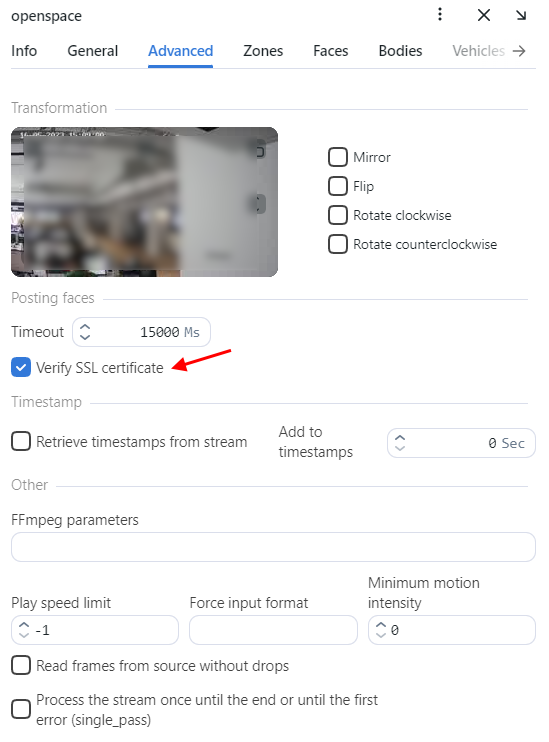
To use WebSocket Secure with Alarm Monitor, specify the connection server address (WebSocket) as
wss://my-example-domain.com/annex/.To configure SSL-encrypted FindFace Multi systems involved in data replication, follow this instruction.
Enable Recommended Security Settings
If necessary, enable the recommended nginx security settings.
To enhance traffic protection, create a
dhparamfile using the following command:sudo openssl dhparam -out /opt/findface-multi/configs/ssl/dhparam.pem 4096
Open the nginx configuration file
/opt/findface-multi/configs/findface-multi-ui/nginx-site.conf. Apply the following modifications to the file:Add the path to the
dhparamfile and the string with the headerStrict-Transport-Securityto the existing sectionserver {...}:ssl_dhparam /etc/ssl/dhparam.pem; add_header Strict-Transport-Security "max-age=31536000; includeSubdomains; preload";
Replace
server_name _;withserver_name my-example-domain.com;.Replace
set $cors_origin "*";withset $cors_origin "my-example-domain.com";.Replace
ssl_protocols TLSv1.2 TLSv1.1 TLSv1;withssl_protocols TLSv1.2 TLSv1.3;.Copy the generic nginx configuration file
nginx.conffrom thefindface-multi-findface-multi-ui-1container to the/etc/nginx/directory:sudo docker cp findface-multi-findface-multi-ui-1:/etc/nginx/nginx.conf /etc/nginx/nginx.conf
In the
/etc/nginx/nginx.confconfiguration file, find theSSL Settingssection and append the following lines:ssl_ciphers ECDHE-ECDSA-AES128-GCM-SHA256:ECDHE-RSA-AES128-GCM-SHA256:ECDHE-ECDSA-AES256-GCM-SHA384:ECDHE-RSA-AES256-GCM-SHA384:ECDHE-ECDSA-CHACHA20-POLY1305:ECDHE-RSA-CHACHA20-POLY1305:DHE-RSA-AES128-GCM-SHA256:DHE-RSA-AES256-GCM-SHA384:DHE-RSA-CHACHA20-POLY1305; ssl_session_cache builtin:1000 shared:SSL:10m; ssl_session_tickets off; ssl_session_timeout 1d; ssl_session_cache shared:SSL:10m; ssl_stapling on; ssl_stapling_verify on;
In the
/opt/findface-multi/docker-compose.yamlfile, mount the configuration file/etc/nginx/nginx.confof the host system into thefindface-multi-findface-multi-ui-1container:Open the
/opt/findface-multi/docker-compose.yamlfile:sudo vi /opt/findface-multi/docker-compose.yaml
Locate the
findface-multi-uisection and adjust it to make sure it looks like this:findface-multi-ui: depends_on: [findface-multi-legacy] image: docker.int.ntl/ntech/multi/multi/ui:ffmulti-2.4.1 logging: {driver: journald} networks: [product-network] ports: ['80:80', '443:443'] restart: always volumes: ['./configs/findface-multi-ui/nginx-site.conf:/etc/nginx/conf.d/default.conf:ro', './data/findface-multi-legacy/uploads:/var/lib/findface-security/uploads', '/opt/findface-multi/configs/ssl:/etc/ssl', '/etc/nginx/nginx.conf:/etc/nginx/nginx.conf:ro']
For automatic HTTP-to-HTTPS redirection, create the new
server {...}section that contains the URL replacement rule in the configuration file/opt/findface-multi/configs/findface-multi-ui/nginx-site.conf. In therewrite ^(.*) https://…line, replaceip_address_server_ffmultiwith IP address of the server where FindFace Multi is installed.sudo vi /opt/findface-multi/configs/findface-multi-ui/nginx-site.conf ... server { listen 80; server_name my-example-domain.com www.my-example-domain.com; rewrite ^(.*) https://ip_address_server_ffmulti$1 permanent; access_log off; }Restart all FindFace Multi containers.
cd /opt/findface-multi/

sudo docker-compose down
sudo docker-compose up -d
Replace a Self-Signed Certificate With a Trusted One After Installation
When using a trusted certificate for SSL configuration in FindFace Multi, ensure that you copy the key, the certificate, the root certificate, and the intermediate certificates (if any) to the
/opt/findface-multi/configs/ssldirectory on the host.If the file names of the certificate and key differ from
domain.keyanddomain.crt, you must:Rename the existing files to match the default names (
domain.keyanddomain.crt) (preferred),Otherwise, edit the
/opt/findface-multi/configs/findface-multi-ui/nginx-site.confand/opt/findface-multi/docker-compose.yamlconfiguration files to use your current file names.
In the
/opt/findface-multi/docker-compose.yamlfile, configure thebackend_api, theservice_notifier_ws, and theservice_notifier_tgservices.Open the
/opt/findface-multi/docker-compose.yamlfile:sudo vi /opt/findface-multi/docker-compose.yaml
In the volumes of the
backend_api, theservice_notifier_ws, and theservice_notifier_tgservices, specify paths to all certificates copied to the/opt/findface-multi/configs/ssldirectory. In theDSN_FF_AUTHenvironment variable, replace thefindface-multi-uiaddress with the domain name from the certificate.Consider the example of a certificate containing three certificates in a trust chain:
backend_api:
  command: [sh, -c, update-ca-certificates && python -m backend_api]
  depends_on:
    timescaledb: {condition: service_healthy}
  environment: {DSN_FF_AUTH: 'https://my-example-domain.com/', DSN_FF_VIDEO_MANAGER: 'http://findface-video-manager:18810/',
    DSN_FF_VIDEO_STORAGE: 'http://findface-video-storage:18611/', DSN_IMAGE_EXTERNAL_ADDRESS: 'https://<ip_address>',
    DSN_PG: 'postgresql+asyncpg://ntech:<...>@timescaledb:5433/annex',
    SERVER_HOST: 0.0.0.0, SERVER_PORT: '2222'}
  image: docker.int.ntl/presale/annex:2.0.2
  logging: {driver: journald}
  networks: [product-network]
  restart: always
  volumes: &id007 ['/opt/findface-multi/configs/ssl/domain.crt:/usr/local/share/ca-certificates/domain.crt',
      '/opt/findface-multi/configs/ssl/intermediateCA.crt:/usr/local/share/ca-certificates/intermediateCA.crt',
      '/opt/findface-multi/configs/ssl/rootCA.crt:/usr/local/share/ca-certificates/rootCA.crt']
service_notifier_ws:
  command: [sh, -c, update-ca-certificates && python -m service_notifier.ws]
  depends_on:
    rabbitmq: {condition: service_healthy}
  environment: {CHECK_ACCESS: 'True', DSN_AMQP: 'amqp://ntech:<....>@rabbitmq:5672/',
    DSN_FF_AUTH: 'https://my-example-domain.com/', SERVER_HOST: 0.0.0.0, SERVER_PORT: 3311,
    USER_AUTOFILL: 'True'}
  image: docker.int.ntl/presale/annex:2.0.2
  logging: {driver: journald}
  networks: [product-network]
  ports: ['3311:3311']
  restart: always
  volumes: *id007
service_notifier_tg:
  command: [sh, -c, update-ca-certificates && python -m service_notifier.tg]
  depends_on:
    rabbitmq: {condition: service_healthy}
  environment: {ALLOWED_SERVICES: null, ALLOWED_STREAMS: null, BOT_TOKEN: '', DSN_AMQP: 'amqp://ntech:<...>@rabbitmq:5672/',
    DSN_FF_AUTH: 'https://my-example-domain.com/', DSN_REDIS: 'redis://@redis:6379/1',
    USER_AUTOFILL: 'True'}
  image: docker.int.ntl/presale/annex:2.0.2
  logging: {driver: journald}
  networks: [product-network]
  volumes: *id007
Restart all FindFace Multi containers.
cd /opt/findface-multi/

sudo docker-compose down
sudo docker-compose up -d
Note
To avoid errors when using cameras and uploaded video archives, either of the following conditions must be met:
The domain name in the certificate’s CN (Common Name) is accessible from the
findface-video-workercontainer and is specified in theROUTER_URLvalue in the/opt/findface-multi/configs/findface-multi-legacy/findface-multi-legacy.pyconfiguration file.Verify the SSL certificate setting is disabled in the camera and video archive settings.