Data Replication Between FindFace Multi Systems
In some cases, images with objects recognized by one FindFace Multi system (e.g., faces, human silhouettes, or vehicles) must be replicated to another FindFace Multi system where they will be subsequently processed. This functionality is available starting from FindFace Multi 2.4.
The system that recognizes objects in the video streams is called the Originating System, while the system to which images with these objects are replicated is the Processing System. Any FindFace Multi system can function as an Originating System, a Processing System, or both — accepting data replicated by downstream Originating Systems and replicating it to an upstream Processing System. In the latter case, both the data obtained by FindFace Multi during video processing and the data received from downstream Originating Systems will be replicated.
When exchanging data, the Originating System transmits to the Processing System the following:
Information about the cameras processed by the Originating System, including installation address and location, and camera groups they belong to.
Events generated during processing of video streams from cameras connected to the Originating System, including full frame images, thumbnails, normalized images, feature vectors, values of additional attributes of the recognized object, and other relevant data.
The above also applies to cameras and events replicated to the Originating System by FindFace Multi systems acting as Originating Systems relative to it.
Note
Events generated from video files uploaded to the Originating System (as opposed to the live streams) are not transmitted to the Processing System.
Replication operates under guaranteed delivery conditions, enabling reliable data exchange even with unstable network connectivity. This is particularly useful for aggregating data from mobile detectors on public or railway transport rolling stock at a central control hub. Guaranteed delivery prioritizes the most recent data upon connection restoration, enhancing responsiveness to incidents and situational awareness.
Note
For information security reasons, replication-initiated data exchange is exclusively Originating System-driven. The Processing System never transmits data to the Originating System or sends data transmission requests under any circumstances.
FindFace Multi deployment from the installer will automatically install the services related to data replication between instances: findface-multi-replication-sender, findface-multi-replication-receiver, findface-multi-replication-sender-migrate, findface-multi-replication-receiver-migrate.
To start working with the Originating System and the Processing System in the UI, enable the Integrations section.
In this section:
Enable Integrations in UI
To enable the Integrations section in the web interface, do the following:
In the
/opt/findface-multi/configs/findface-multi-legacy/ui-config.yamlfile, locate and uncomment themulti_source_systemsection.sudo vi /opt/findface-multi/configs/findface-multi-legacy/ui-config.yaml multi_source_system: enabled: true
Restart all FindFace Multi containers.
cd /opt/findface-multi/

sudo docker-compose restart
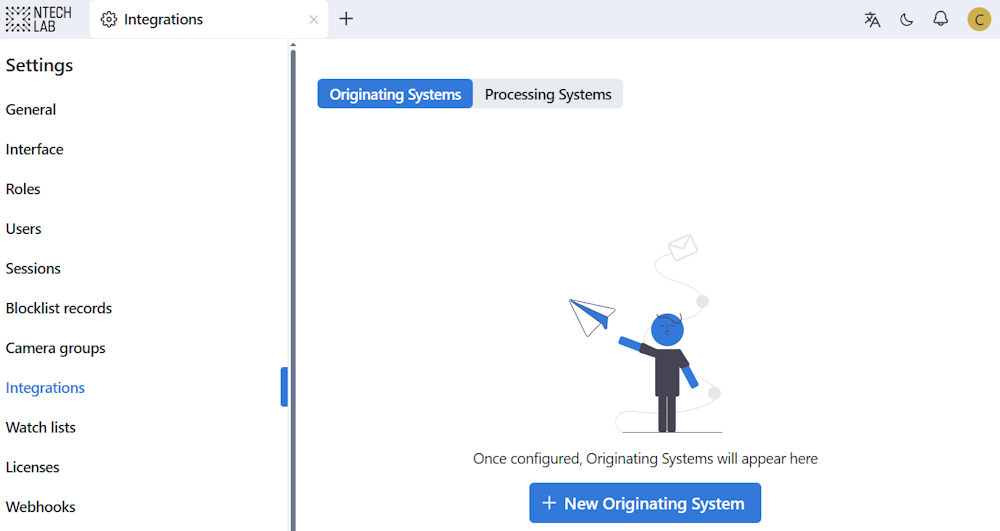
You will see that the Integrations section appeared in the General settings. Now you are all set to call the Originating System and the Processing System. The Originating System should be configured first.
Configure Originating System
Important
The Originating System should be created in FindFace Multi defined as a Processing System.
In the Processing System, navigate Integrations → Originating Systems. Click + New Originating System. In the opened sidebar, enter the Originating System name and click Save. After the Originating System has been created, you will see the connection token. You will need it to configure the Processing System.
Configure Processing System
Important
The Processing System should be created in FindFace Multi defined as an Originating System.
In the Originating System, navigate Integrations → Processing Systems. Click + New Processing System. In the opened sidebar, enter the Processing System name, the connection token generated upon the Originating System setup, and the Processing System URL. Click Save.
Once configuration is completed, check whether the synchronization between the Originating System and the Processing System is successful. The status of both systems should be active, and the synchronization time should update upon systems pinging each other.
Configure SSL-encrypted Replication Systems
If you enabled SSL encryption on the replication systems, configure them in the following way:
In the Processing System, copy the
/opt/findface-multi/configs/ssl/domain.crtcertificate file and save it asreceiver.crtin the/opt/findface-multi/configs/ssl/directory of the Originating System. As a result, SSL data storage directory of the Originating System will look like this:ls /opt/findface-multi/configs/ssl domain.crt domain.key receiver.crt
In the Originating System, copy the
/opt/findface-multi/configs/ssl/domain.crtcertificate file and save it assender.crtin the/opt/findface-multi/configs/ssl/directory of the Processing System. As a result, SSL data storage directory of the Processing System will look like this:ls /opt/findface-multi/configs/ssl domain.crt domain.key sender.crt
Mount the certificate of either replication system to another one in the
volumessection of thedocker-compose.yamlfile.In the Originating System, mount the
./configs/ssl/receiver.crtcertificate file in thevolumessection of thefindface-multi-replication-senderservice:sudo vi /opt/findface-multi/docker-compose.yaml ... findface-multi-replication-sender: command: [run, --config=/etc/config.yml] depends_on: findface-multi-replication-sender-migrate: {condition: service_completed_successfully} findface-ntls: {condition: service_started} nats: {condition: service_started} postgresql: {condition: service_healthy} extra_hosts: ['findface-ntls:host-gateway'] healthcheck: {interval: 5s, retries: 3, start_period: 300s, test: 'curl -f http://localhost:8015/healthcheck/ || exit 1', timeout: 3s} image: docker.int.ntl/ntech/multi/multi/replication-sender:ffmulti-2.4.1 networks: [product-network] restart: always volumes: ['./configs/findface-multi-replication-sender/findface-multi-replication-sender.yaml:/etc/config.yml:ro', './configs/ssl/domain.crt:/usr/local/share/ca-certificates/domain.crt:ro', './configs/ssl/receiver.crt:/usr/local/share/ca-certificates/receiver.crt:ro'] ...
In the Processing System, mount the
./configs/ssl/sender.crtcertificate file in thevolumessection of thefindface-multi-replication-receiverservice:sudo vi /opt/findface-multi/docker-compose.yaml ... findface-multi-replication-receiver: command: [run, --config=/etc/config.yml] depends_on: findface-multi-replication-receiver-migrate: {condition: service_completed_successfully} postgresql: {condition: service_healthy} extra_hosts: ['findface-ntls:host-gateway'] healthcheck: {interval: 5s, retries: 3, start_period: 300s, test: 'curl -f http://localhost:8014/healthcheck/ || exit 1', timeout: 3s} image: docker.int.ntl/ntech/multi/multi/replication-receiver:ffmulti-2.4.1 networks: [product-network] restart: always volumes: ['./configs/findface-multi-replication-receiver/findface-multi-replication-receiver.yaml:/etc/config.yml:ro', './configs/ssl/domain.crt:/usr/local/share/ca-certificates/domain.crt:ro', './configs/ssl/sender.crt:/usr/local/share/ca-certificates/sender.crt:ro'] ...
In case of a trusted SSL certificate, mount the entire certificate chain.
Restart all FindFace Multi containers.
cd /opt/findface-multi/

sudo docker-compose down
sudo docker-compose up -d
Camera and Camera Group Replication
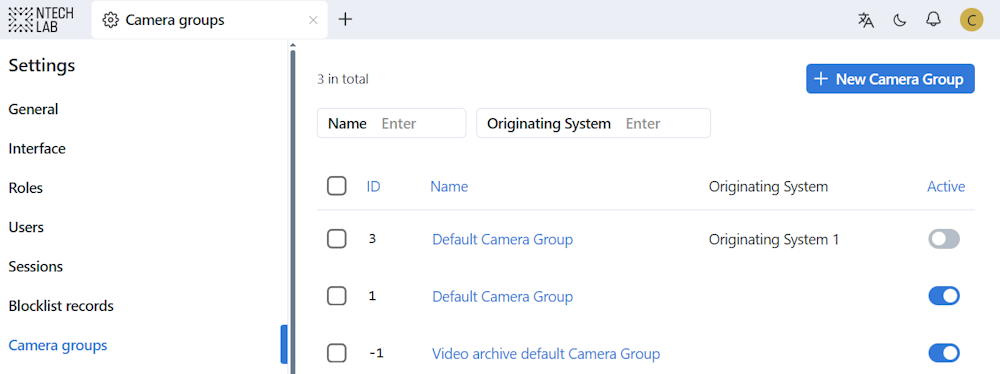
In the Originating System, create a camera group. When a camera group is created in the Originating System, it is replicated to the Processing System. By default, the replicated camera group is inactive. In the Processing System, camera groups from the Originating System can be identified by their names. There’s an option to filter camera groups by the Originating System’s name.
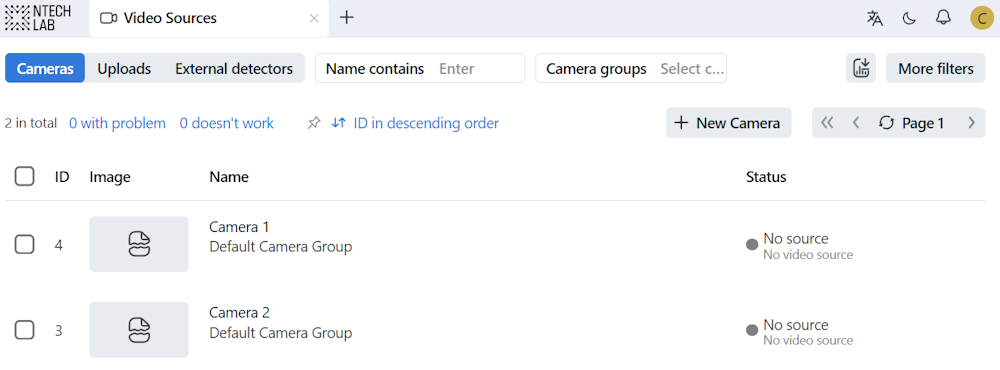
In the Originating System, create a camera. When a camera is created in the Originating System, it is replicated to the Processing System.
Delete Replicated Cameras and Camera Groups
If a camera is deleted in the Originating System, and there are no remaining events for that camera in the Processing System, the cleanup routine deletes the camera from the Processing System.
If a camera group is deleted in the Originating System, and it no longer has any cameras related to it in the Processing System, the cleanup routine deletes the camera group from the Processing System.
By default, cameras and camera groups that have been deleted in the Originating System are cleaned up in the Processing System once a day. This behavior is controlled by the daily_cleanup_settings in the findface-multi-replication-receiver.yaml configuration file of the Processing System. If needed, specify time at which cameras and camera groups should be deleted from the Processing System in the start_time parameter. The default is set to 12:30:
sudo vi /opt/findface-multi/configs/findface-multi-replication-receiver/findface-multi-replication-receiver.yaml

daily_cleanup_settings:
  on_startup: false
  start_time: '12:30'
You can adjust the cleanup behavior so that cameras and camera groups are deleted when the findface-multi-replication-receiver service restarts. To do this, set the on_startup parameter to true:
sudo vi /opt/findface-multi/configs/findface-multi-replication-receiver/findface-multi-replication-receiver.yaml

daily_cleanup_settings:
  on_startup: true
  ...
Event Replication
Events from the Originating System are replicated to the Processing System upon their occurrence. Navigate to Events of the Processing System to see events that are being transmitted from the Originating System. Work with replicated events in a regular manner.
Replication Licensing
The Originating System licenses are displayed in the Licenses → General → Originating System licenses section of the Processing System. The limits on camera resources of the Originating Systems’ licenses are summed up.
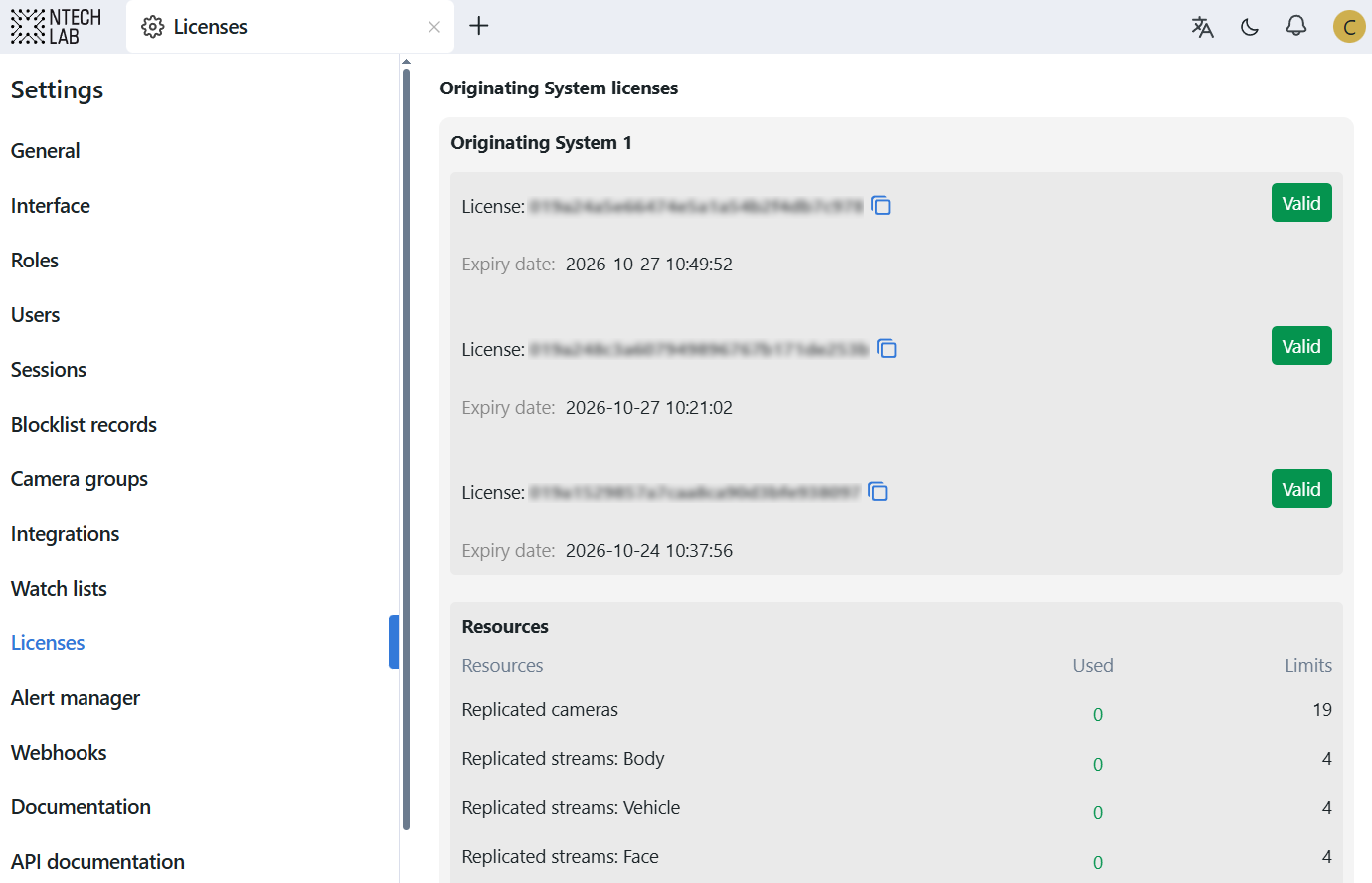
In the Processing System, cameras from the Originating Systems are licensed as replicated resources: Replicated cameras, Replicated streams: Face, Replicated streams: Body, and Replicated streams: Vehicle.
Note
With the complex hierarchy of the systems involved, you may need advice on licensing. Please contact our specialists at support@ntechlab.com.